Gaming PC Maintenance Checklist: What to Do and How Often

Keep a useful baseline
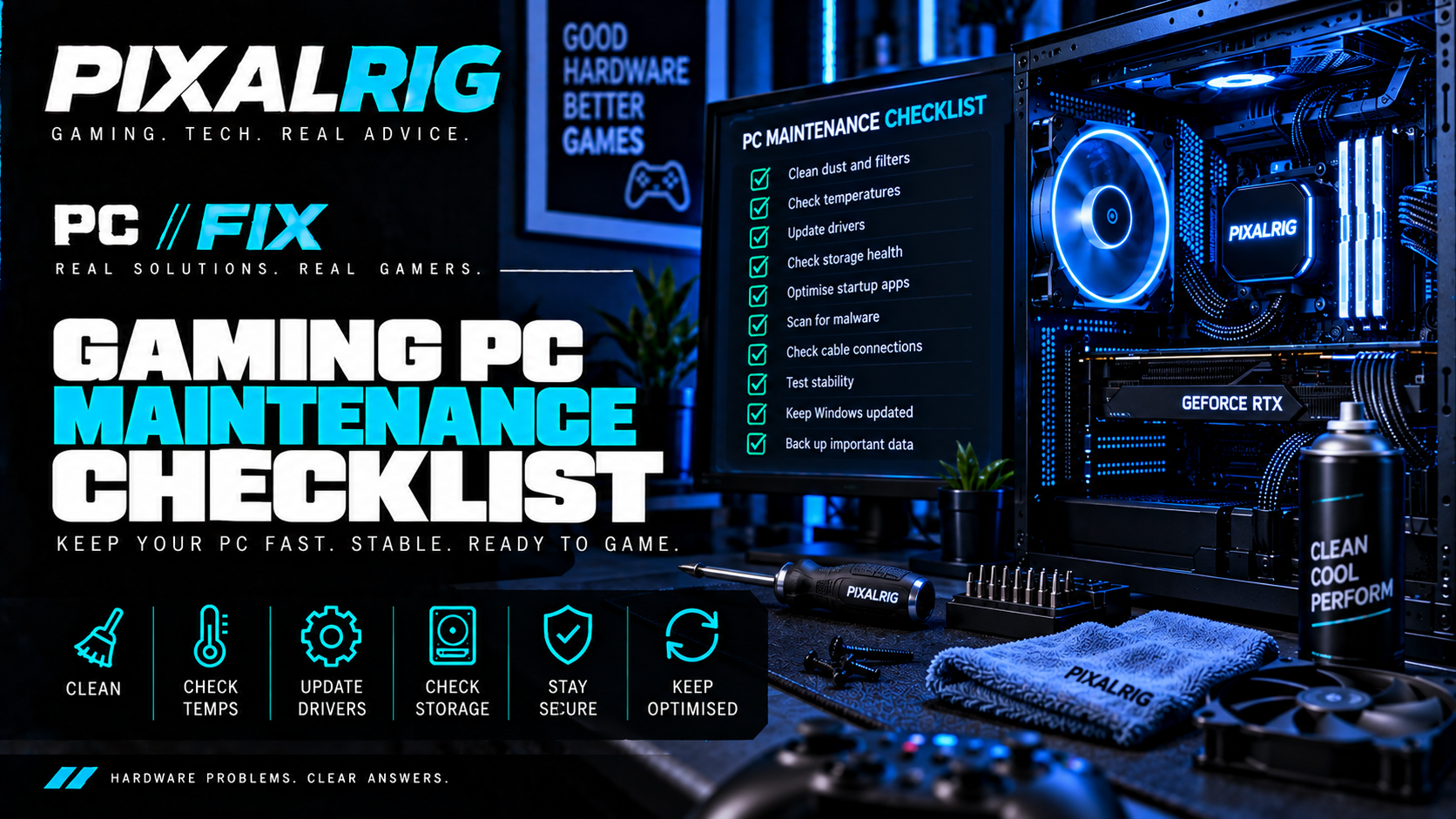
Routine maintenance helps you notice changes before they become faults. Keep backups current, review updates and storage, record the normal temperature and fan behaviour of your own PC, and inspect accessible vents and filters periodically. Adjust the interval for dust, pets and how often you use the system.
Keep maintenance safe
Back up important files and note your PC’s normal behaviour. Power down and unplug it before cleaning accessible filters or inspecting internal connections. Stop if you find a burning smell, burnt connector, liquid damage or work beyond your confidence. Never open a power supply.
Regularly check Windows updates, free storage and unusual
startup/background applications
SAFE
Regularly check Windows updates, free storage and unusual
startup/background applications.
Check update status and available space monthly, and review startup apps when new software is installed. Record anything unusual; a persistent low-space warning or unexplained heavy background load is a reason for targeted troubleshooting, not a reason to replace hardware.
Learn the PC’s normal temperatures and fan behaviour under a familiar
workload so changes are easier to spot
SAFE
Learn the PC’s normal temperatures and fan behaviour under a familiar
workload so changes are easier to spot.
Note normal idle and familiar-game temperatures, fan response and noise for your exact components after setup and after major changes. A sustained deviation or new throttling is a clue to investigate with the CPU or GPU heat guide; one reading is not a universal fault threshold.
Every few months, or more often in dusty or pet-heavy environments,
power down and unplug before cleaning accessible filters and vents
CAREFUL
Every few months, or more often in dusty or pet-heavy environments,
power down and unplug before cleaning accessible filters and vents.
Inspect filters and vents every few months and adjust to dust or pets. If airflow is visibly blocked, clean accessible parts only after powering down and unplugging. If you find heat damage, liquid or a burning smell, stop and seek professional help.
Keep enough free system-drive space for Windows, game updates, shader
caches and temporary files
CAREFUL
Keep enough free system-drive space for Windows, game updates, shader
caches and temporary files.
Check storage headroom before large game or Windows updates and keep important files backed up. If space repeatedly runs out, identify what is using it before buying a drive; do not delete unfamiliar system files.
Review startup apps instead of installing generic registry cleaners or
‘PC booster’ software
CAREFUL
Review startup apps instead of installing generic registry cleaners
or ‘PC booster’ software.
Review unfamiliar startup entries when software is added or the PC becomes slower. If safely disabling a non-essential app improves a repeatable symptom, investigate that app; routine registry cleaners and booster tools are not maintenance requirements.
Update GPU, chipset and firmware when there is a reason and follow
official instructions
CAREFUL
Update GPU, chipset and firmware when there is a reason and follow
official instructions. Do not flash BIOS simply because a newer version
exists.
Check official release notes when an update addresses a real issue, security risk or compatibility need, and record the version before changing it. Routine BIOS flashing is unnecessary; if an update fails or compatibility is uncertain, use manufacturer support.
Back up important files before major troubleshooting, recovery or
storage work
CAREFUL
Back up important files before major troubleshooting, recovery or
storage work.
Confirm backups are current and that important files can be located before recovery or storage work. If a drive shows errors or files disappear, stop risky writes and seek appropriate recovery advice rather than treating it as routine cleaning.
Inspect cables, fans and filters when performance, temperature or noise
changes rather than replacing parts immediately
ADVANCED
Inspect cables, fans and filters when performance, temperature or
noise changes rather than replacing parts immediately.
During periodic cleaning, look for blocked fans, damaged cables or new noise without touching live equipment. A new fault moves into the matching diagnostic guide; a normal inspection needs only a note and the next sensible maintenance check.
Found a problem during maintenance?
If you discover a genuine symptom rather than a routine observation, use the PC//FIX symptom checker to choose the next safe test. A no-display fault, repeated restart, crash, stutter or unusual CPU/GPU heat needs its matching diagnostic path. Record what changed and stop using the system for burning smells, liquid damage or damaged power connections.
Keep a simple maintenance record
Write down the date, updates or cleaning completed, free-space trend, backup status and temperatures or fan behaviour in a familiar workload. Compare future observations with your own baseline and your component makers’ guidance. If a repeatable fault develops, take that record into the relevant PC//FIX guide.
Frequently asked questions
How often should I clean my gaming PC?
Inspect accessible filters and vents every few months, sooner in a dusty or pet-heavy room. Clean only when needed, with the PC powered down and unplugged.
Should I update every driver and BIOS immediately?
Review official release notes and apply updates for a specific security, compatibility or stability reason. Follow the maker’s instructions; do not flash firmware merely because a newer version exists.
What should I record?
Keep the date of backups and major changes, free storage and the normal fan and temperature behaviour of your own PC in a familiar workload. A change matters more than a generic number.
Does maintenance mean buying replacement parts?
No. Replace a component when its condition, compatibility or a confirmed fault justifies it. Routine cleaning and observation do not require a purchase.
When should I stop and seek help?
Stop for burning smells, liquid, damaged power connections, data loss you cannot safely manage, a non-functional cooler or work beyond your confidence. Never open a PSU.
Official research sources
AMD — Troubleshooting System Stability:
https://www.amd.com/en/resources/support-articles/faqs/PIBRMATS2.html
AMD — Stability Troubleshooting Tips:
https://www.amd.com/en/resources/support-articles/faqs/TS-TIPS.html
AMD — CPU Performance and Temperature:
https://www.amd.com/en/resources/support-articles/faqs/PIBRMATS3.html
Intel — Thermal Throttling:
https://www.intel.com/content/www/us/en/support/articles/000088048/processors.html
Intel — Overheating Troubleshooting:
https://www.intel.com/content/www/us/en/support/articles/000005791/processors/intel-core-processors.html
Microsoft — Clean Boot:
https://support.microsoft.com/en-us/windows/experience/startup-boot/how-to-perform-a-clean-boot-in-windows
Microsoft — Improve PC Performance:
https://support.microsoft.com/en-us/windows/experience/performance-optimization/tips-to-improve-pc-performance-in-windows
NVIDIA — Driver Help UK:
https://www.nvidia.com/en-gb/drivers/drivers-faq/
Did this checklist help you plan maintenance?
- Yes — keep your baseline and revisit it when something changes.
- Found a fault — follow the matching diagnostic guide or seek manufacturer or repair support where advised.

Pixalrig
Pixalrig delivers practical UK gaming coverage, straightforward hardware advice and buying guides focused on genuine value.