PC Won’t POST After RAM or XMP/EXPO Changes? Safe Checks

Quick answer: If your desktop powers on but gives no picture after changing RAM or enabling XMP/EXPO, first check whether the board or system manual describes memory training for this exact situation. Let a documented training attempt finish without repeatedly forcing the PC off. If it remains stuck beyond the model’s expected behaviour, return to the last known working memory configuration and change one thing at a time. A black screen or DRAM light does not prove that a RAM stick has failed.
This guide is for a desktop whose fans or lights respond but which appears not to complete startup after RAM installation, reseating, adding modules or changing memory settings. If pressing the case button produces no startup response, use PC Won’t Turn On. If the recent change was not RAM related, start with PC Turns On but No Display for monitor, input, cable and graphics-output checks.
Stop for hazards: Smoke, burning smells, liquid exposure, scorched parts, a shock, abnormal heat or repeated protection trips mean stop using the PC. Disconnect it only if safe and seek qualified help. Never open the PSU. Do not reach inside while powered to inspect a light or touch a DIMM.
First identify the stage
POST is the startup process before the operating system loads. A blank monitor alone does not establish that POST has failed. Observe the PC with the case closed and record:
- No response at all: use the No Power guide.
- Fans or lights, but no picture: continue here if the timing points to a RAM or profile change. Check the monitor’s own menu, selected input, cable and appropriate graphics output in the No Display guide if those are uncertain.
- A brief flash, repeated restarting or changing debug indicators: record the sequence. Some behaviour may be training or recovery, but do not assume a loop is normal for your model.
- BIOS/UEFI appears: the PC can display an image. Record any memory warning, detected capacity and settings. It has progressed beyond a wholly blank startup.
- Windows begins loading: troubleshoot that later stage; do not treat it as an unqualified no-POST fault.
Write down the exact motherboard/system model and revision, CPU, old and new kit part numbers, number of modules, slots used, firmware version if known, and precisely what changed. The last change is a clue, not proof.
1. Give documented memory training room to finish
After some memory, firmware or reset changes, a supported machine may show no picture while training memory. ASUS documents this on covered devices and advises leaving power connected and avoiding forced shutdown during its documented process. Its published time is not a universal timer for other boards. Use the expected signs and waiting guidance for your exact system and memory configuration. ASUS memory-training guidance
If it reaches BIOS or Windows: record how long this boot took, check the detected memory capacity and allow normal startup. A completed training attempt is progress; it does not yet prove the XMP/EXPO setting is stable during use.
If the model’s expected period has passed and the system stays stuck: note any persistent code or light, and proceed to the next relevant check. If you cannot establish the model’s expected behaviour, ask the manufacturer before repeated forced restarts. Do not interrupt an active firmware update.
2. Read indicators using the exact manual
If your board or prebuilt has a debug LED, code display or beep pattern, consult its exact manual and record the indication after the documented training/startup interval. An indicator changing during startup is different from one that remains. A DRAM indication points toward memory detection or training, but seating, settings, slots, the CPU memory path and the board may all matter. No beep is inconclusive if no speaker is fitted. ASUS Q-LED guidance and MSI no-display guidance illustrate model-dependent diagnostics.
If the indication is VGA or the monitor’s own menu cannot display: return to the No Display route instead of repeatedly moving RAM.
Before touching RAM
POWER-OFF INTERNAL CHECK — OPTIONAL. Continue only with an accessible standard desktop, the exact manual and confidence identifying the slots and latches. Shut down using the manufacturer’s method; switch the PSU off if fitted, disconnect mains and external connections, and follow its residual-power, waiting and static-handling instructions. Dark LEDs alone do not prove safe handling. Hold modules by their edges, never force the keyed notch or latch, and do not touch contacts or circuitry. Close the case before reconnecting power for each test, then disconnect again before another internal change.
For an OEM, mini PC, all-in-one, laptop, soldered-memory system or uncertain access, use the system maker’s procedure or support instead. Stop for damaged slots, contacts, unidentified loose hardware or any work beyond your confidence.
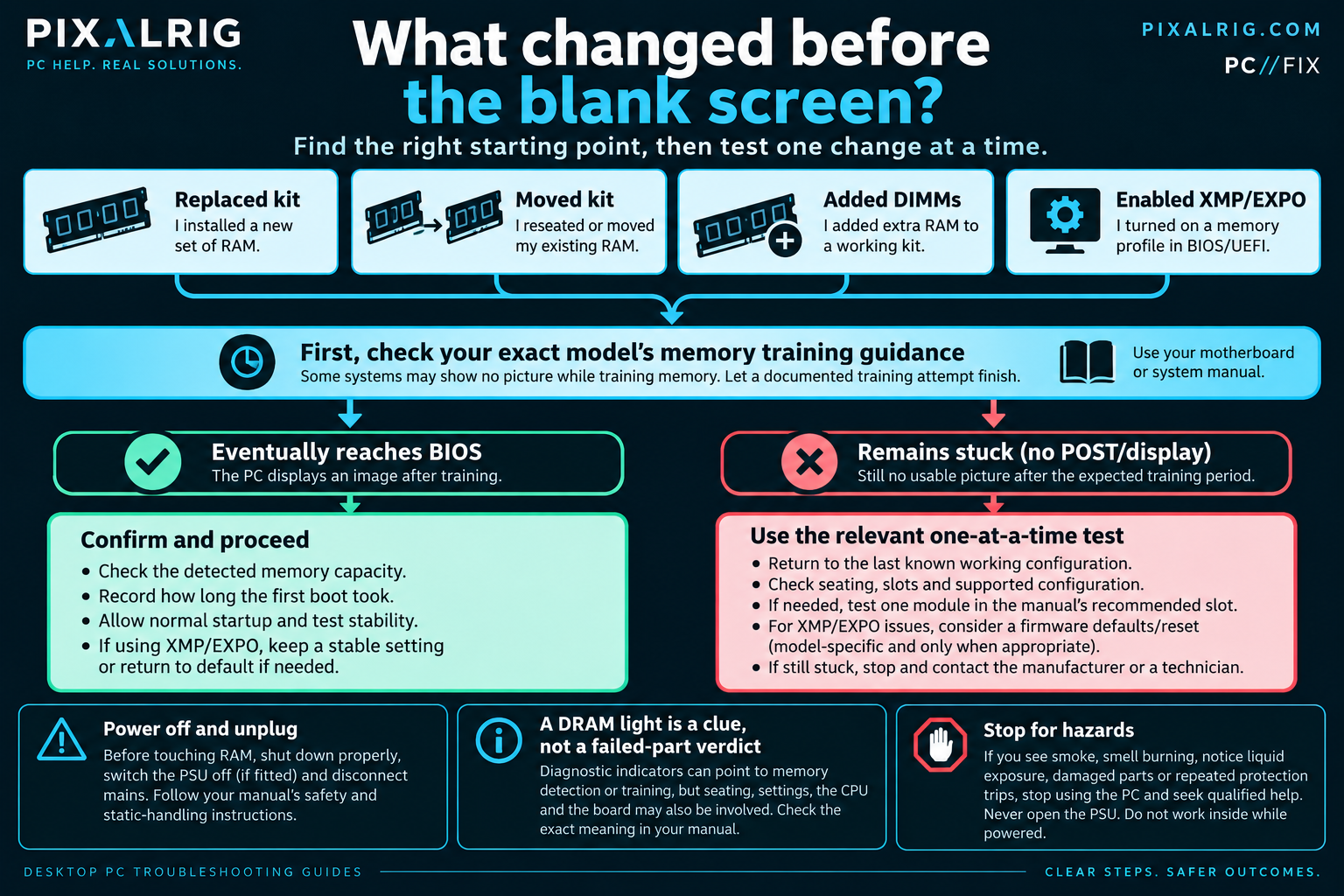
3. Choose the one check that matches what changed
A new kit replaced the old kit
With power disconnected, compare the new kit’s exact type and part number with the motherboard/system specification, CPU memory support, slot population guide and tested-memory list. DDR generations and module types are not interchangeable. A QVL absence means the exact configuration may not have been tested; it is not proof of incompatibility. MSI explains the QVL limit.
Check that the new modules are fully seated in the manual’s recommended slots. Reassemble and make one normal attempt, allowing documented training.
If seating restores startup: the connection or configuration was relevant; confirm the detected capacity and normal boots before changing a profile.
If it remains stuck: if the original kit was known to work and is available, return to that complete original configuration as one controlled comparison. Old kit works, new kit does not makes the new-kit configuration relevant, but does not establish a defective DIMM. Check exact support and seek retailer/maker help. Neither works means the fault is not isolated to the new kit.
You moved or reseated the existing kit
Use the exact manual to put the unchanged kit back in its documented slots, ensuring each latch is seated. Reassemble and allow the model’s training process.
If it starts: the changed seating or slot arrangement is implicated. Record the working slots and capacity.
If it stays stuck: a manual-specified single-module test may help, but do not infer both modules are bad from one failed boot.
You added modules to a working kit
Adding two DIMMs is a different test from replacing a matched kit. Even separately purchased performance kits with the same printed part number may differ internally and may not run together at the previous profile. Kingston’s kit-mixing FAQ describes this limit.
After a documented training attempt, remove only the newly added set with power disconnected and restore the exact previously working modules, slots and settings where possible.
Original configuration works: the expanded population or mixed-kit settings are implicated. Check board/CPU limits for that exact number of DIMMs; do not promise the earlier XMP/EXPO speed with four modules. Ask the manufacturer about a supported matched-capacity configuration.
Original configuration also fails: the addition has not isolated a faulty new module. Recheck seating and indicators, then seek model-specific help.
You enabled XMP or EXPO without moving RAM
XMP and EXPO are memory overclocking profiles, distinct from baseline default operation. Their advertised setting is not a guarantee on every CPU, board, firmware and DIMM population. Intel XMP, AMD EXPO.
Allow documented training first. If BIOS opens or firmware automatically returns to a safe setting: record the message and restore the last stable default/baseline memory setting using the board’s interface. Confirm normal startup there before reconsidering a profile. If the screen never returns: use the model’s documented recovery method only after the boundaries below. Do not adjust voltages at random or keep retrying the same failed profile.
4. Use one module only when the evidence calls for it
If seating and the original configuration do not resolve a persistent memory-related indication, and the manual permits it, test one removable module in the manual’s recommended single-module slot. Close the case, allow documented training and record the result. Disconnect again before swapping to the other module in the same slot. MSI and ASUS describe single-module comparisons in their no-display guidance. MSI · ASUS
One works and the other repeatedly does not in the same documented slot: a module-specific difference is useful evidence for support, not a definitive diagnosis without controlled confirmation.
Both work alone but not together: investigate the supported slot arrangement, DIMM population, kit matching and profile settings. Do not automatically buy RAM.
Neither works: the test has not isolated the memory sticks. Stop repeated swaps and discuss the board, CPU memory path, firmware and power/startup evidence with the maker or technician.
5. Firmware defaults are a conditional recovery step
If the only change was XMP/EXPO or manual memory tuning, the board cannot reach its settings screen after its documented training/recovery behaviour, and its manual specifies a clear-CMOS or recovery procedure for that situation, returning firmware settings to defaults can be appropriate. This is not a BIOS update and it can change other settings. Record the previous configuration and locate any BitLocker recovery key first where possible. Firmware or hardware changes can trigger BitLocker recovery. Do not clear the TPM, disable security, or erase storage to bypass that screen. ASUS board-specific CMOS guidance · Microsoft BitLocker
Use only the procedure for the exact motherboard or prebuilt. If you cannot identify it, cannot access the recovery key or depend on custom boot/storage settings you cannot restore, stop and seek support. Do not follow a generic jumper or battery-removal recipe. Do not flash the BIOS merely because the screen is black; a verified CPU/memory-support requirement or documented recovery situation is a separate manufacturer-led decision.
If defaults restore BIOS access: keep the baseline, check detected capacity, boot order and required settings, and confirm normal startup. Leave the failed profile off until compatibility is understood.
If nothing changes: do not keep clearing settings. Give the recorded evidence to support.
When to stop and what to report
Stop immediately for hazards or damage. Stop when the model’s training behaviour is unknown, the PC remains stuck after the safe comparison, the firmware recovery information is missing, or further work needs a controlled known-good part or inaccessible hardware. Do not remove the CPU or buy RAM simply to prolong the checklist.
Give support the exact board/system and revision, CPU, firmware version if known, all RAM kit labels and module count, original and changed slot layout, whether an XMP/EXPO profile was enabled, the last working state, observed training duration/sequence, persistent debug indication, and each one-change test with its result. Keep serial numbers out of public posts. A failed pre-Windows startup is no reason to reinstall Windows or erase a drive.
Want to record one check at a time? The PC//FIX Guided Diagnostic can help document what happens and prepare a support summary. It does not identify a failed component for you. If the symptom changes, return to the PC//FIX hub.
Frequently asked questions
How long should I wait on a black screen after changing RAM?
Use the training behaviour and duration for your exact system, memory amount and firmware. ASUS publishes a range for devices covered by its guidance, but that is not a universal timeout. If the expected period has passed, record the result rather than repeatedly cycling power.
Does a DRAM light prove my RAM is dead?
No. It identifies a memory-related startup stage on boards that provide that indicator. Seating, slot choice, settings and other parts of the memory path remain possible. Read the exact manual and compare one change at a time.
My RAM is missing from the QVL. Must I replace it?
No. MSI says absence can mean the exact kit was not officially tested. Check type, exact part, CPU generation, module count and board support, then use controlled results and manufacturer advice before spending.
It works without XMP/EXPO. Is the kit faulty?
That result says the baseline configuration can start while the selected profile has not been established as working on this combination. It does not alone prove a defect. Keep the stable setting while checking support and stability.
Research and limits: This guide combines manufacturer documentation with Pixalrig’s result interpretation. Pixalrig has not reproduced this fault or benchmarked the configurations. The exact system and motherboard manuals take priority.

Pixalrig
Pixalrig delivers practical UK gaming coverage, straightforward hardware advice and buying guides focused on genuine value.