PC Stuttering in Games: Complete Troubleshooting Guide

Quick verdict
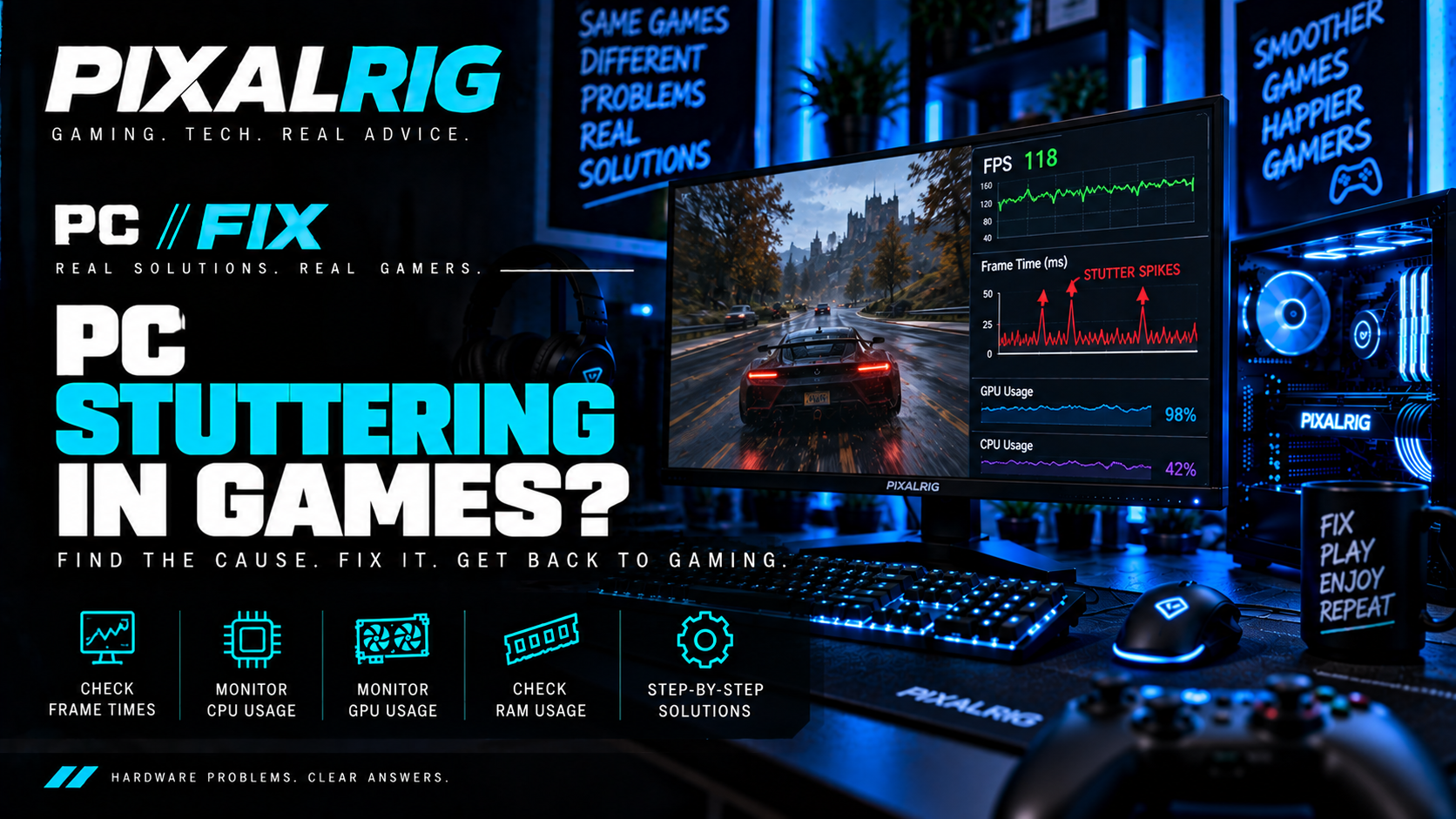
High average FPS can hide uneven frame delivery. Before changing settings, repeat a short scene twice and check whether the hitch happens at the same place—and whether another game behaves similarly.
One game hitching at particular effects or locations calls for a different investigation from several unrelated games pausing unpredictably. Choose the next check from that pattern. Do not buy a GPU just because an FPS counter looks high while the game feels rough.
1. Identify what you are seeing
Swipe sideways to see the full table
| What happens? | Start here |
|---|---|
| FPS stays consistently low | Compare identical settings and scenes; if performance has dropped, use the FPS Suddenly Dropped guide |
| Brief judders despite reasonable FPS | Observe frame delivery and repeat the same action |
| Large pauses at intervals | Note their timing and related background/resource activity |
| Horizontal splits during movement | Check display refresh and synchronisation; this is tearing |
| Players teleport or actions arrive late while the camera stays smooth | Check the game’s network indicators/status |
| The game closes or the whole PC freezes/restarts | Use the matching fault path, rather than treating it as ordinary hitching |
Network lag and local stutter can happen together. An offline scene that also hitches makes a purely network explanation less convincing.
If the game closes, use Games Crashing to Desktop. If the PC becomes unresponsive, use PC Freezes While Gaming. For a different system symptom, use PC//FIX.
2. Understand what average FPS hides
Frame time describes the interval associated with individual frames, usually in milliseconds.
Evenly delivered 60 FPS corresponds to about 16.7 ms per frame. At 120 FPS it is about 8.3 ms. But an average of 60 FPS does not mean every frame arrived 16.7 ms apart.
Several unusually long frames can create visible hitches while the average remains respectable. A 100 ms gap spans roughly twelve normal 120 FPS frame intervals.
Average FPS summarises the whole capture. Frame time shows individual frame intervals; a frame-time spike is an unusually long interval. A 1% low summarises the slow end of a capture and can help compare runs, but tools calculate it differently. It is not the minimum FPS and does not tell you when or why a hitch occurred. Use the same tool, version and capture length; inspect the frame-time pattern as well. NVIDIA’s FrameView guide distinguishes its low-FPS and percentile metrics.
A frame-time spike shows a delay in the measured frame stream. It does not identify the cause. Different tools measure rendering, presentation or displayed frames differently; generated frames can also affect the FPS number. Keep the same measurement and frame-generation setting when comparing.
3. Observe a repeatable scene before fixing anything
SAFE SOFTWARE CHECK
You can begin without installing anything:
- Record the game, settings and recent game, driver, Windows or hardware changes.
- Choose a short route, save point or action where the problem occurs.
- Repeat it twice without changing settings. Note the hitch location, approximate duration and whether the second run improves.
- Compare another already-installed demanding game. Where the affected game offers an offline scene, compare that too. If the camera stays smooth but players teleport or actions arrive late, record the game’s ping, packet-loss indicators and service status.
- Make one change only after choosing the relevant branch below, then repeat the same workload.
Record resolution/render scale, textures, ray tracing, frame cap, sync settings and display mode. Keep power mode consistent; on a laptop, use its intended charger and supported power setup.
For measurements, start with the game’s built-in frame-time graph or benchmark. Task Manager can show broad CPU, memory, disk and process trends, but may miss a brief event. Alt-Tab can change the workload, so do not treat an after-the-hitch reading as a simultaneous measurement.
An optional tool is NVIDIA FrameView, downloaded from NVIDIA. It can log frame times in supported workloads. Leave its overlay off if it interferes; current release notes describe compatibility limitations. Do not enable legacy injection or bypass game/anti-cheat restrictions.
Where available, record the hitch alongside temperatures/clocks, CPU/GPU activity, memory and storage activity. Several readings agreeing is more useful than one isolated percentage.
A simple note is enough: game/version; scene; first or repeat run; hitch location/duration; other games affected; recent changes; one test; result. You do not need every sensor reading before choosing a sensible check.
4. If only one game stutters, investigate that game first
This is especially useful when other demanding games remain smooth, a hitch repeats at a particular location/action, or the problem began after a game update.
First encounter worse than the second? Compilation, cached data or asset streaming becomes more plausible. It is not proof of shader compilation. Epic’s engine documentation explains how runtime pipeline compilation can cause hitches.
Allow any game-provided shader-preparation process to finish. Check the developer’s support page and patch notes for the exact version. Do not repeatedly delete shader caches: rebuilding them can bring first-use work back.
The same location hitches every run? Investigate game-specific loading, settings or engine behaviour before assuming the PC is broken.
One optional mod or overlay is involved? Disable that item only and repeat. Improvement implicates the tested item or interaction; it does not prove every overlay is harmful.
If the second run is smoother, record that difference before changing anything. If similar hitches appear in unrelated games, use the shared-system checks next. Different games stress hardware differently, so smooth comparison games do not certify every component healthy.
5. Choose one check from the evidence
SAFE SOFTWARE CHECKS
Swipe sideways to see the full table
| Observation | One sensible next check | What the result means |
|---|---|---|
| Heavy graphics scenes hitch | Lower render resolution only | Improvement supports workload sensitivity; it does not identify a defective GPU |
| Texture-heavy traversal plus possible VRAM pressure | Lower texture quality one step | Repeatable improvement supports that resource/settings path |
| Busy crowds/simulation; lower resolution helps little | Reduce one CPU-heavy setting | Improvement supports scene/CPU-delivery sensitivity, not proof that a CPU upgrade is required |
| Low available RAM and coincident memory/disk activity | Close one identified non-essential memory-heavy app | Improvement supports background demand or pressure |
| Traversal hitch coincides with game-drive activity | Check the game’s storage requirements and which process is busy | Streaming becomes plausible; high disk use does not diagnose a bad SSD |
| Regular pauses match another app | Let its task finish or safely close that app | Improvement implicates that activity |
| Problems develop after warming up | Observe clocks and model-specific thermal/power limits | Correlated limiting behaviour makes this branch more plausible |
| Tearing or pacing changes with display mode | Confirm refresh rate, then test one pacing setting | Improvement supports a display/configuration interaction |
If a change does nothing, record that result and restore the setting before another test. A negative result weakens the tested explanation; it rarely rules out the whole category.
Choose the next branch from the remaining evidence: if lowering resolution does not affect the hitch, compare the CPU-heavy scene, game-specific behaviour and memory clues. If lower textures do not help, nearly full VRAM alone is a weak reason to buy a GPU. If closing the identified app makes no difference, check another measured correlation rather than closing everything. Stable clocks and temperatures weaken the heat explanation; drive activity without repeatable timing weakens the streaming clue. If a pacing change removes tearing but leaves long frames, investigate the hitch separately.
High GPU utilisation can be normal. Low GPU utilisation during a hitch can mean the GPU is waiting. Total CPU utilisation can hide a busy thread. None is a stand-alone bottleneck verdict.
6. Interpret memory and storage carefully
VRAM usage is not automatically VRAM pressure. Games may allocate or cache memory they do not need immediately. Microsoft documents that exceeding an application’s video-memory budget can incur performance penalties; a nearly full meter alone does not show that this happened.
RAM pressure can lead to paging. When working data cannot remain in physical memory, retrieving it from storage can delay work. Look for low available memory and related activity during the symptom, then compare after closing an identified non-essential app. A high usage figure alone is insufficient.
Busy storage is not necessarily faulty storage. Asset loading, paging, downloads and scans can all produce activity. Check free space and the game’s supported requirements. Remove only files you recognise or use documented cleanup; do not delete unfamiliar system files.
Do not disable the pagefile, install a RAM cleaner or purchase RAM/VRAM from one reading. Storage health warnings, disappearing drives or read/write errors require backup and appropriate support before further recovery work.
7. Check temperatures alongside clocks and performance
A high temperature alone does not prove throttling. Ask whether the hitch coincides with reduced clocks/performance and the exact model’s documented thermal behaviour.
Intel describes thermal throttling as protective clock reduction. Clocks can also fall because load or power behaviour changes.
Use the existing CPU temperature guide or GPU temperature guide when the evidence points there. Stable readings during the same symptom weaken a thermal explanation, although slow sampling may miss brief events.
Stop demanding workloads if a required fan/pump is not functioning or protective shutdowns occur. Do not raise voltage or power limits to hide a cooling problem.
8. Review drivers and updates when timing supports it
Record the installed driver and game versions before changing them.
- Known issue matching your game/configuration: follow the developer or GPU vendor’s supported remedy.
- Reproducible problem immediately after a driver update: investigate an official compatible previously working version or supported rollback.
- A newer driver merely exists: check its relevant fixes and requirements; availability is not proof that it fixes this hitch.
- Installation/profile problem or vendor-directed troubleshooting: a documented clean installation may be useful. Repeated reinstalls are not a default step.
Use official vendor/OEM packages, particularly for laptops. Avoid driver-updater utilities and random old drivers. Keep settings consistent and allow any required compilation after an update before comparing.
October 2026 Windows checkpoint: Microsoft announced a gradual Memory Integrity rollout, with readiness checks and existing choices respected. An update does not prove the setting changed. If timing matches, record the update and check Windows Security → Device security → Core isolation details. Use Microsoft’s guidance and supported fixes. Do not disable security for a speculative FPS gain.
9. Check display pacing separately from long frames
Confirm the intended refresh rate in Windows and the game. Record VRR, V-Sync, frame cap and fullscreen/windowed mode.
A cap within performance the PC can sustain may improve consistency, but its appropriate value depends on the game, display and sync configuration. Test the game’s limiter as one change; do not stack multiple limiters.
VRR matches display refresh to changing frame delivery within supported operation. It cannot remove a long delay in producing a frame. There is no universal V-Sync/VRR/cap recipe for every system.
If tearing changes but frame-time spikes remain, you have improved one symptom without establishing the hitch’s cause.
10. If several games still hitch
Use the shared evidence: background processes, driver timing, memory/storage pressure, temperatures/clocks, supported power mode and recent changes.
Look for timing that repeats: a launcher download or update, browser activity, recording/capture task, optional overlay or scheduled scan. Let a legitimate update or scan finish; otherwise safely close one identified non-essential app and repeat the scene. Do not end unfamiliar Windows processes or disable security.
If a broader conflict remains plausible, follow Microsoft’s clean-boot procedure, record changes and restore normal startup afterwards. Do not disable security software or required game services. If the game cannot run in the test configuration, that is inconclusive. Improvement calls for systematic isolation, not permanently disabling everything.
If the issue followed manual tuning, return that documented setting to its normal baseline before another comparison. Do not change CPU, GPU and memory settings simultaneously or flash BIOS on suspicion.
Persistent problems at a known baseline deserve a concise support record: hardware, versions, scene, frame-time evidence where available and each test/result.
When to stop—and when an upgrade becomes relevant
Stop for electrical/physical damage, unresolved data risk or work beyond your confidence. Never open a PSU. Before any manufacturer-approved internal work, power down, disconnect mains and follow its discharge and handling instructions.
A game-specific repeatable fault may need a developer fix. Similar problems across applications may warrant system-manufacturer or technician investigation. Neither automatically calls for buying hardware or reinstalling Windows.
If repeatable testing shows that your normally functioning PC cannot meet your target, use Upgrade Checker to plan options and compatibility checks. It cannot prove the cause of a hitch.
Avoid random “FPS fixes”
Do not use registry cleaners, RAM cleaners or FPS boosters. Avoid security disabling, blind cache deletion, random BIOS flashing, overclocking or voltage changes. Change one variable and confirm the result.
Keep the working configuration and a simple record. The maintenance checklist helps preserve useful baselines, backups and storage headroom.
Frequently asked questions
Why does 120 FPS still feel rough?
The average can hide a few long frames. Observe their pattern rather than assuming average FPS describes smoothness.
Does improvement on a second run prove shader stutter?
No. Compilation, caching and streaming can produce similar patterns. Use the game’s evidence and official support.
Does nearly full VRAM mean I need a new GPU?
No. Compare one resource-relevant setting and look for repeatable improvement before planning a purchase.
Should I reinstall Windows or update BIOS first?
No. Ordinary hitching calls for observation and targeted checks first. Recovery or firmware work needs a specific reason and suitable safeguards.
Did this improve the result?
Yes: record the successful change and repeat the scene to confirm.
No: preserve the evidence, restore unsuccessful changes and choose the next relevant branch or seek support. Stop repeating fixes without new information.

Pixalrig
Pixalrig delivers practical UK gaming coverage, straightforward hardware advice and buying guides focused on genuine value.