PC Won’t Turn On? Safe Checks for a Desktop with No Power

Quick answer: If pressing your desktop’s power button produces no fans, lights or other response, check the external power path first: the outlet, power strip, mains lead and the PSU’s rear I/O switch if fitted. A silent PC does not tell you whether the PSU, motherboard or case button has failed. Work through one safe check at a time before buying anything.
This guide is for a desktop that does not begin startup. If fans or lights stay on but the screen is blank, use PC turns on but no display instead. A brief twitch, flash or click means something attempted to start; record that different behaviour rather than calling it completely dead.
Stop for hazards: Smoke, sparks, burning smells, liquid exposure, scorched connectors, abnormal heat, a shock or tingling from the case, or repeated breaker trips mean stop using the PC. Disconnect power only if safe and seek appropriate professional help. Never open a PSU, even after unplugging it. Corsair explains why its internal stored charge remains dangerous.
First confirm what “won’t turn on” means
Observe one ordinary press of the case button with the case closed. You do not need to reach inside a powered PC.
- No new response: continue below. Note whether a standby light was already present before pressing the button.
- Fans or lighting remain on but no picture appears: change to the No Display guide. Power being present does not prove that startup checks completed.
- Brief movement or repeated stopping: stop repeated attempts and record the sequence. An attempted-start fault needs different diagnosis, especially after hardware work.
- A logo or BIOS screen appears: startup has progressed beyond this guide’s core symptom. Record where it stops; do not start replacing power components on that basis.
- Windows loads before a crash or restart: use the relevant PC//FIX route.
An idle PSU fan alone tells you little: some units deliberately use a zero-RPM mode. Judge the PC’s overall response and use model-specific indicators, not fan movement as a universal PSU test.
Before proceeding, note whether this is a new build that has never worked, a previously working PC, or a machine that stopped responding after a change. Moving, cleaning, case work or PSU replacement gives you a useful place to look. Timing is a clue, not proof.
1. Check a known-working wall outlet
SAFE EXTERNAL CHECK
If the outlet and surrounding equipment look intact and there is no electrical hazard, confirm the outlet works using an ordinary undamaged device you already know works, such as a lamp. Do not open a socket or test its contacts.
Device does not work: stop blaming the PC. Use a safe known-working outlet if available; a suspect socket needs appropriate electrical help.
Device works: power is available there for that device. This does not prove that the PC’s lead or PSU works. Continue to the strip or UPS path.
2. Try the direct power path
SAFE EXTERNAL CHECK
Disconnect the PC’s mains lead, then, if practical and safe, connect it directly to the known-working wall outlet instead of a power strip, extension or UPS. Keep the rest of the PC unchanged and make one normal start attempt.
PC starts: the removed supply path or its connections is implicated. Check its instructions and condition rather than assuming the PC needs a new part. Do not continue using damaged or overheating equipment.
Still no reaction: continue to the mains lead. Do not bypass earthing or safety protections, and do not repeatedly reset a breaker that trips. Dell includes direct-outlet testing in its desktop PSU troubleshooting.
3. Check the external mains lead
SAFE EXTERNAL CHECK — DISCONNECT BEFORE RESEATING
Switch the supply off where appropriate and unplug the lead. Inspect its accessible plug, cable and connector for damage. Do not dismantle the plug, replace a fuse as a diagnostic experiment or insert anything into the PSU inlet.
Reconnect an undamaged correctly specified lead firmly at the PC and wall. Hold the plug body rather than pulling the cable. Restore the supply and try once.
PC responds: the connection is implicated. Confirm normal startup before changing anything else.
No change: inspect the documented rear power switch next. A secure-looking lead can still be faulty; its appearance alone is not a test.
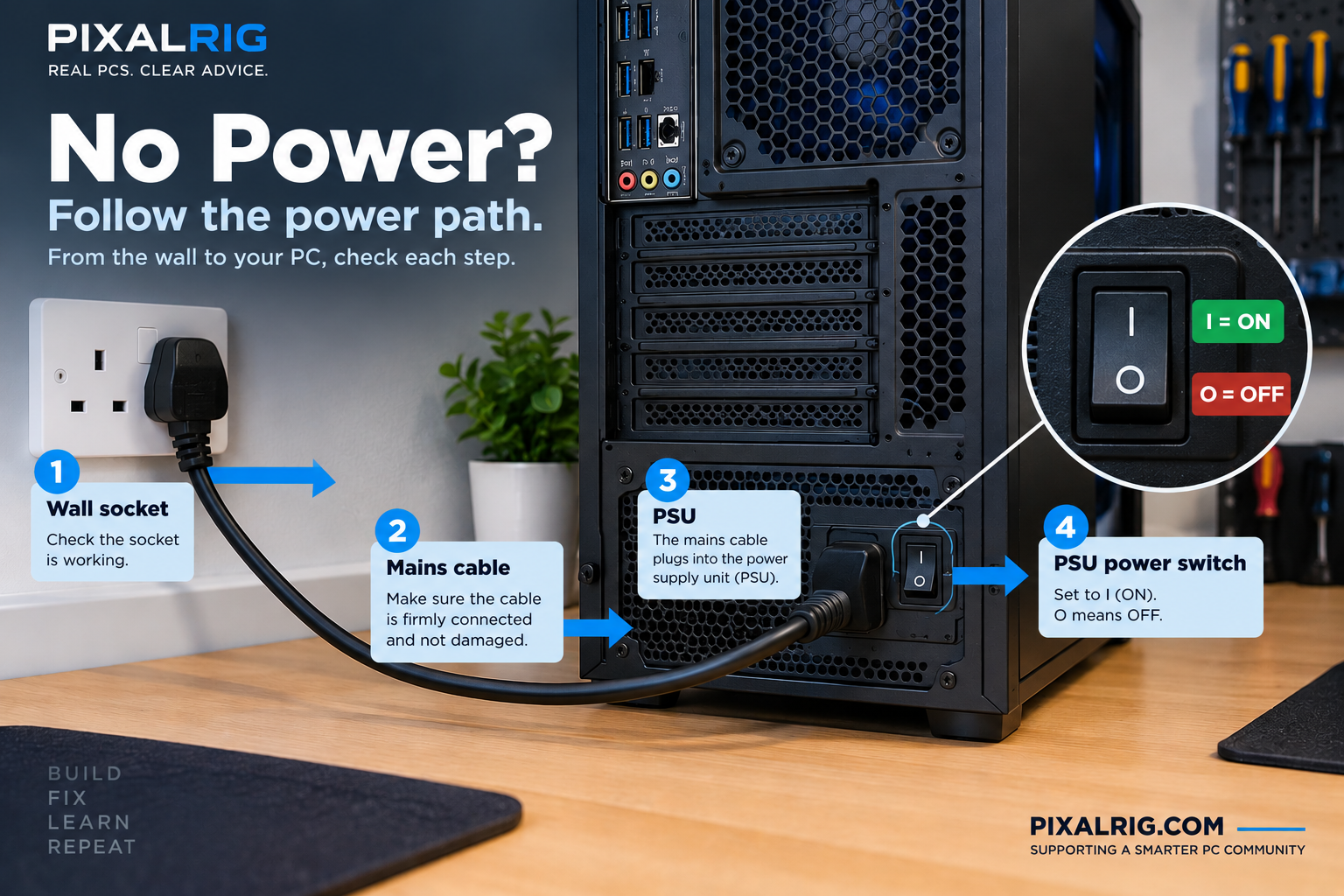
4. Check the correct rear switch
SAFE EXTERNAL CHECK
Some desktop PSUs have an I/O rocker beside the mains inlet. I means on; O means off. With the case closed and the lead properly connected, set that switch to I and use the normal case button. Intel includes this in its external cable checks.
PC starts: the switch state prevented startup. No replacement purchase is required for that result.
No response, or no rocker is fitted: continue below. Do not assume every desktop has one.
A voltage-selector switch is different: do not flip it experimentally. If its setting or the equipment’s supply requirements are uncertain, disconnect and seek model-specific advice before another attempt.
5. Compare one suitable mains lead if available
SAFE EXTERNAL CHECK — DISCONNECT BEFORE SWAPPING
If you already have a known-good external lead, use it only when its connector, electrical rating and local plug/earthing arrangement meet this PSU’s requirements.
An identical-looking connector is not sufficient.
For a desktop using an external power brick, use only an adapter approved for the exact system; do not substitute a monitor or laptop adapter on appearance.
PC starts with the suitable alternative: the original lead or its connection becomes more relevant. Keep a damaged or suspect lead out of use.
No change, or no suitable spare: do not buy a PSU just to extend the checklist. Continue to external peripherals.
This is about the lead from the wall. Internal modular PSU cables follow different compatibility rules; Corsair distinguishes the two.
6. Disconnect non-essential external devices
SAFE EXTERNAL CHECK — POWER DISCONNECTED
Unplug mains power before removing non-essential USB devices, hubs, external drives, docks and other external connections.
Follow the system manual for any required test connections.
Leave the case closed, reconnect only the required power connection and try the usual button once.
PC now responds: a removed device, cable or port is implicated. If there is no damage, reconnect one device at a time with power disconnected between changes, stopping when the fault returns.
Do not keep retesting a suspect damaged device.
If the PC is now running but has no image, use the No Display route.
Still no response: the result has not identified the failed internal part. Decide whether manufacturer support or the optional disconnected checks below are appropriate.
Want to record one check at a time? Use the PC//FIX Guided Diagnostic and select “Nothing happens”. It can help record results and prepare a support summary; it does not identify a failed component for you.
Use your model’s support before generic internal checks
For an OEM/prebuilt, all-in-one, mini PC or laptop, find the exact system model and its official support instructions.
Ask the seller or manufacturer about permitted access and service options before dismantling it.
Opening a case does not have one universal warranty consequence; damage caused by work can affect coverage.
Some models have a documented power reset or external self-test. Use it only when the procedure applies to your model, and record the result.
Do not import another machine’s button-hold duration or reset sequence. For example, Dell documents PSU self-tests for supported desktop variants; that is not a universal test for every PSU.
A supported test result is evidence about what that test checks. It does not certify every component or guarantee stability during gaming.
If an adapter indicator behaves differently when connected to the PC, record it and obtain model-specific help rather than repeatedly reconnecting or buying an adapter on suspicion.
Before any internal check
POWER-OFF INTERNAL CHECKS — OPTIONAL
Continue only on an accessible standard desktop if you are comfortable, have the exact manuals and can identify the connectors. Otherwise stop here and take your results to support.
- Switch the PSU off if fitted, disconnect mains and all external connections, and follow the manufacturer’s preparation, residual-power procedure and waiting period. Do not treat dark LEDs as proof that work is safe.
- Follow the documented static precautions and case-opening method. Do not touch contacts or circuitry.
- Keep the PSU casing closed. Disconnection or holding the case button does not make its interior safe.
- Photograph the existing connections before changing one item.
- Do not force a connector or continue past damage, trapped cables or an unidentified loose screw.
- Close and reassemble the case before reconnecting power for a test.
- Disconnect again before the next internal change.
Dell's safety guidance explains preparation and the importance of the exact service manual. A battery-powered or proprietary system needs its own procedure, not these ATX checks.
After PSU work: if you cannot verify that every modular cable is supplied or explicitly approved for the installed PSU model, keep the PC off.
Do not reuse another PSU’s cables simply because they fit, even within the same brand.
Check the maker’s compatibility information or contact support. Corsair's cable reference illustrates why exact identification matters.
7. Check the main motherboard power connection
POWER-OFF INTERNAL CHECK
Using the exact board and PSU manuals, identify the main motherboard power connection.
Standard ATX boards commonly use a 24-pin connector; proprietary systems can differ.
Check its seating and latch without forcing it.
Reseat only as the manual permits.
On a modular PSU, check the documented PSU-side connections too, using that unit’s approved cable.
Reassemble before testing.
A response returns: the connection or associated power path is implicated.
Confirm normal startup; if fans stay on without a picture, change to the No Display guide.
Nothing changes: this does not condemn the motherboard.
Check the required CPU power connection next. ASUS includes these separate inputs in its board power guidance.
8. Check the required CPU power connection
POWER-OFF INTERNAL CHECK
Disconnect again.
Use the board manual to identify its required CPU/EPS power sockets and the PSU manual to identify the matching approved cable.
Do not assume every auxiliary socket is optional or that all boards require the same arrangement.
CPU/EPS and PCIe/GPU cables are not interchangeable; never force a plug.
Check one relevant connection, reassemble and retest.
The PC responds: the changed connection matters. Record it and confirm normal startup before further changes.
No change: the CPU, PSU or board is not automatically proven faulty.
Inspect the case-button connection if you can identify it confidently. MSI's no-power support also distinguishes CPU power and front-panel connections; its pin map is not universal.
9. Check the documented case-button connection
POWER-OFF INTERNAL CHECK
This is especially relevant after a new build, case change or cable work.
With power disconnected, identify the case power-switch connector and its exact motherboard header position using both manuals.
Check that it is in the documented location and seated correctly.
An all-in-one front-panel plug or proprietary harness may not match a generic two-pin diagram.
Do not bridge pins with a screwdriver, improvise a switch test or probe a powered board.
If the connector cannot be identified, or the button/harness appears damaged, let the case/system maker or a technician assess it.
Correcting the connection restores startup: that path was involved. It does not mean the whole case needs replacement.
Connection is correct but there is still no response: the switch path remains one possibility; further assessment is more useful than buying a motherboard.
Do not progress to CPU removal, BIOS flashing or a generic CMOS reset simply to add another test.
Does a motherboard light mean the PSU is working?
It means an indication of power is present, not that the whole startup power path works correctly.
If it was lit before pressing the button but nothing new happens, record “standby light, no start”.
The case switch, connections, PSU and motherboard can still require investigation.
The reverse is also limited: no visible light does not prove a dead board.
Indicator provision and behaviour vary by model.
Do not remove covers or reach inside while powered merely to search for one.
When to stop and what to tell support
Stop whenever the next check exceeds safe access, model documentation or your confidence.
Stop immediately for electrical hazards, uncertain modular cables or physical damage.
If the safe checks leave the PC unresponsive, controlled diagnosis is the next step.
A technician may compare a suitable known-good PSU using its own approved cables, or isolate a switch/connected component under the manufacturer’s procedure.
A changed result helps identify a path; several simultaneous substitutions do not prove which individual item failed.
A PSU fan or simple unloaded test is not a substitute for full diagnosis.
Give the seller, manufacturer or repairer:
- Exact system/board and PSU model where known; use invoices or labels, and do not post serial numbers publicly.
- Whether the PC ever worked, and what changed before the fault.
- No reaction, standby only, twitch/stop or sustained power—the actual observation.
- Each check and its result, including a supported diagnostic code if available.
- Any liquid, smell, shock, damage or protection trip, plus important data without a backup.
Request an explanation of the evidence before a replacement quote.
A PC that never begins startup is not a reason to reinstall Windows or erase storage.
Fix, replace, upgrade or wait?
Fix without buying
A corrected switch or connection may be all that is needed.
Confirm normal startup, back up important files and preserve the working configuration.
Replace only with evidence
Establish the fault, support/warranty options and exact compatibility first.
For a justified standard-desktop PSU replacement, our PSU buying guide can help you consider selection factors.
Its new-build recommendations are not a diagnosis or a universal wattage prescription.
Proprietary OEM hardware may require a system-specific part.
Upgrade separately
A failed part does not automatically justify replacing the whole PC.
Once the repair need is understood, Upgrade Checker can help frame a separate performance decision.
It cannot diagnose this fault.
Wait safely
Keep the PC disconnected while waiting for support, verified cable information or a compatible repair option.
Waiting is a valid outcome when the alternative is guessing.
Research and limitations
This guide synthesises manufacturer documentation and Pixalrig’s result interpretation.
Pixalrig has not reproduced this fault or performed electrical PSU testing for this article.
The exact system, motherboard, case and PSU instructions take priority.
If the symptom changes, return to the appropriate PC//FIX route rather than repeating all the checks.
Frequently asked questions
Can I use these internal checks on a laptop or mini PC?
No. Battery isolation, adapters, access and wiring differ. Use the exact system’s manufacturer instructions rather than applying desktop ATX connector checks.
Should I buy a PSU to find out whether mine is faulty?
Not on suspicion. A compatible, controlled comparison can be useful, but it must use approved cables and an appropriate procedure. Ask support or a technician when you do not have the equipment or confidence.
Should I reinstall Windows if nothing happens when I press power?
No. This symptom has not reached Windows startup. Preserve storage and record the power checks before any recovery work.

Pixalrig
Pixalrig delivers practical UK gaming coverage, straightforward hardware advice and buying guides focused on genuine value.