BIOS Opens but Windows Won’t Boot? Data-Safe Checks First

Quick answer: Reaching BIOS/UEFI means the PC can
power on and show firmware, but it does not tell you why Windows
stopped. First record the exact screen, what changed, whether the
Windows drive is reliably visible in firmware, and whether you have a
verified backup and any BitLocker recovery key. Check one thing at a
time. Protect important files before a recovery action that
changes the drive or Windows installation. Dell describes a PC
that passes BIOS but fails to load the operating system as a no-boot
situation; that stage is not itself a diagnosis. Dell
no-boot guidance
This guide covers a desktop that reaches a maker logo, BIOS/UEFI, a
boot-device message, Windows loading, Automatic Repair or Windows
Recovery Environment (WinRE), but does not reach a usable Windows
session. If pressing the power button produces no response, use PC Won’t Turn
On. If there is no usable image at all, use PC Turns On
but No Display. If the problem began with RAM or XMP/EXPO and the
machine is still failing before BIOS, use the RAM no-POST
guide.
Stop for hazards and data risk. Smoke, burning
smell, liquid, shock, scorching, abnormal heat or physical damage means
stop using the PC and seek qualified help; disconnect only if safe. A
drive that disappears, gives a health warning, produces repeated
abnormal mechanical noises or has increasing read/write errors needs
data-aware support. If important files have no verified backup, do not
experiment with reset, reinstall, formatting, partition deletion or
repeated write-heavy repairs. A drive listed in firmware can still have
a problem.
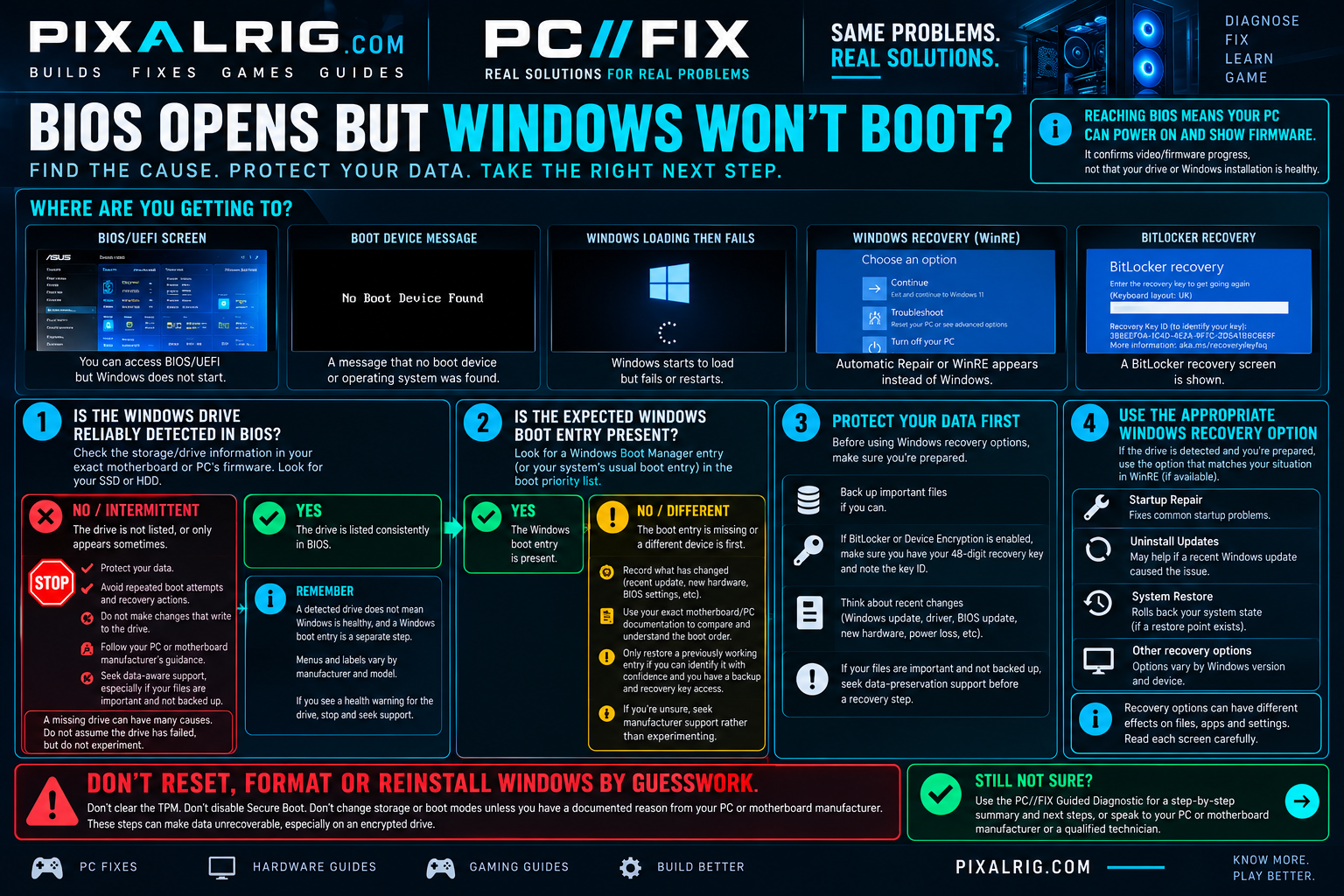
1. Identify the furthest
screen
Write down the exact message or photograph the screen without sharing
a recovery key, serial number or private files publicly.
- BIOS/UEFI opens, no Windows attempt: check physical
drive detection and the boot entry separately below. - “No boot device” or similar: it reports that
firmware did not find a usable boot path; it does not alone prove a dead
SSD. - Windows logo or spinning indicator appears, then
error/restart: Windows startup has begun. Note the error and
recent update, driver or hardware change; the later-stage WinRE route
may fit. - Automatic Repair/WinRE appears: read the available
options and the data/key gate before selecting a repair. - BitLocker/device-encryption recovery appears: stop
other settings changes and locate the matching key first.
Microsoft says WinRE can appear after repeated startup failures and
contains distinct tools, including Startup Repair, Startup Settings and
System Restore. Availability and layout vary with Windows version and
device. Microsoft
Windows RE
2. Ask
what changed, then inspect without saving changes
Was there a Windows update, BIOS/firmware update or reset, new drive,
moved storage cable, hardware replacement, RAM/profile change, power
interruption or USB boot device just before this began? Write down the
exact desktop or motherboard model, drive model if known, existing
backup status and the last time Windows worked. The timing is a clue,
not proof.
Using your exact system or motherboard manual,
inspect the firmware’s storage inventory for the
physical Windows SSD/HDD and its separate boot priority
list for the previously used Windows boot entry. Menus vary. ASUS
documents that boot priority is configurable, and its boots-to-BIOS
guidance treats an absent detected drive separately from an incorrect
boot option. ASUS
boot priority · ASUS drive
detection
Drive missing or comes and goes: stop repeated boot
attempts and firmware changes, especially if files are unbacked-up. The
cause might involve connection, controller, drive or board; this
observation alone does not identify which. Seek the exact maker’s
guidance and data recovery advice where the files matter. Do not
initialise, format or install Windows onto the drive to see if it
appears.
Physical drive consistently visible, but Windows boot entry
missing: record both facts and seek model-specific support.
Physical detection does not prove that the boot files, firmware entry or
Windows installation are intact. Do not create entries or switch
UEFI/Legacy/CSM or storage-controller modes by trial and error.
Drive and a recognisable former Windows boot entry visible,
but another device became first after a documented change: if
you can identify the former entry with confidence, have the exact
manual, know the previous configuration and have verified backup and
recovery-key access, restore only that boot priority as
one controlled comparison. ASUS documents the setting, but its menu and
labels are model-dependent. ASUS boot
priority If Windows starts, back up important files, then record the
working setting. If it does not, stop changing firmware settings and
note the result. If the former entry is uncertain, seek support without
saving a guess.
3. Put encryption and
files before recovery
Device Encryption can exist on supported Windows Home devices as well
as BitLocker on other editions. A hardware or security change can cause
a 48-digit BitLocker recovery-key request. From another trusted device,
use Microsoft’s key-finding instructions, compare the key
ID on the PC with the saved key, and check the Microsoft
account that set up encryption, any printout or a work/school
administrator. Keep the key private; do not type it into Pixalrig or a
public support post. Microsoft
Device Encryption · Find
a BitLocker recovery key
If the key is unavailable, stop before firmware, TPM, Secure Boot,
storage-mode or Windows recovery changes. Microsoft says that if the key
cannot be found and the triggering change cannot be undone, reset may
remove all files. Pixalrig cannot recover or recreate the key. Microsoft
key guidance
Even with a key, a repair is not a substitute for a verified backup.
If important files lack one, ask for data-preservation help before a
state-changing recovery. Do not clear the TPM, disable Secure Boot or
change controller mode as a shortcut.
4. If
Windows Recovery Environment is already available
First identify whether you are seeing Automatic
Repair, Advanced options, or a BitLocker
prompt; do not select Reset this PC or Install
now simply because they are offered. Microsoft notes that
encrypted devices need the recovery key for many WinRE tools. Some
Windows 11 versions offer newer recovery choices with different effects
on personal files, so read the exact screen. Microsoft
recovery options · Windows
RE
If the drive is reliably detected, there is no health warning,
important data is backed up or its risk has been addressed, and the
failure is in Windows startup, Startup Repair is a
bounded Microsoft tool to consider. In WinRE it is under
Troubleshoot → Advanced options → Startup Repair. It
automatically attempts changes to common Windows startup problems; it
may ask for the BitLocker key and may fail. Record its report. A failure
is not a reason to immediately reinstall or run copied command-line boot
recipes. Microsoft
Startup Repair
If a specific recent Windows update is the plausible
trigger, Microsoft’s WinRE Uninstall Updates option may
be relevant after the same data/key gate. Some updates cannot be
removed, and removing a security update has consequences; read the exact
option and Microsoft’s guidance before acting. Microsoft
update removal
If a relevant earlier System Restore point exists,
review its date and affected programs before selecting it. Conventional
System Restore rolls back system files and settings rather than personal
files, but it changes installed software and settings; encrypted devices
may need the key. Do not confuse it with newer point-in-time
restore where available, which Microsoft says can roll back
personal files too. Microsoft
System Restore · Microsoft
recovery options
If WinRE never appears, do not repeatedly force the PC off to
manufacture a recovery screen on a possibly failing drive. Microsoft’s
Windows
RE guidance describes installation media made on another PC and
choosing Repair my PC to enter WinRE; this is different
from installing Windows. If you cannot distinguish the choices, have no
key, or need to preserve unbacked-up files, stop and get help before
using media.
When to stop and what to
give support
Stop for a missing/intermittent drive, health warning or abnormal
drive sound; important unbacked-up files; an unknown BitLocker key; an
unfamiliar firmware configuration; a failed controlled boot-order
comparison or Startup Repair; or steps requiring partition, firmware or
command-line changes. A Windows reinstall, reset, format, TPM clear,
Secure Boot disable, UEFI/Legacy/CSM switch, storage-mode switch or BIOS
flash is not a diagnostic first step. These may alter access or erase
data and require an exact, documented reason and recovery plan.
Give support the motherboard/OEM model and revision, drive model,
exact screen/error, whether the physical drive and Windows boot entry
each appear, backup and key availability without sharing the
key, recent changes, WinRE availability and the result of each
single check. If Windows starts again, verify a backup before further
experimentation. The PC//FIX Guided
Diagnostic can record the stage and prepare a summary; it does not
establish a failed part. Return to the PC//FIX hub if the symptom
changes.
FAQs
BIOS
can see my SSD. Does that prove the drive is healthy?
No. It establishes that firmware detected it at that moment. A
Windows boot entry and reliable data access are separate questions. Stop
if detection is intermittent or warnings appear; preserve data before
repair.
Does
“Keep my files” make Reset this PC safe without a backup?
No. It is a recovery operation, not a verified backup. Microsoft
distinguishes reset and reinstall choices and their effects on files,
apps and settings. Protect important files and establish the BitLocker
key before choosing one. Microsoft
recovery options
Should
I clear CMOS or change Secure Boot when Windows will not start?
Not on this symptom alone. First record the drive and boot-entry
state and what changed. Firmware/security changes can affect the boot
path and encryption recovery; use an exact maker procedure only when its
reason, previous settings and key access are known. ASUS boot
priorities · Microsoft
key guidance
Research and limits: This guide interprets Microsoft, ASUS and
Dell documentation for safe triage. Pixalrig has not reproduced this
fault on every board or Windows version. The exact system/drive maker
and Microsoft instructions govern any model-specific recovery.

Pixalrig
Pixalrig delivers practical UK gaming coverage, straightforward hardware advice and buying guides focused on genuine value.